Reset Password & Setup Passwordless
Last Updated: July 14, 2026
This guide walks you through resetting your password and setting up passwordless
(passkey) login on the SOI Enrollment website.
1. How to Reset Your Password
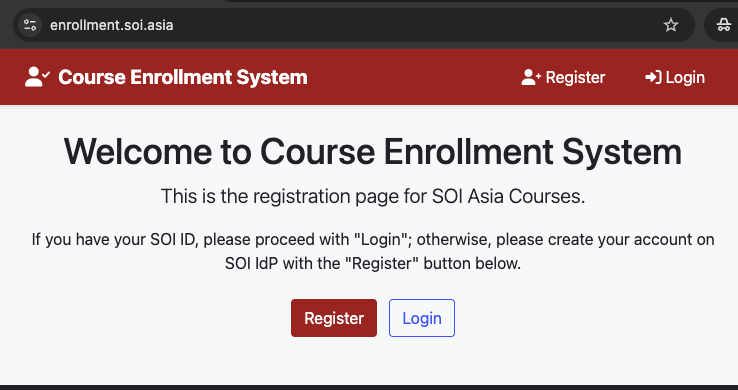
- Open your web browser and go to the SOI Enrollment website: https://enrollment.soi.asia.
-
Click on the Login button. You will be redirected to the SOI Asia IdP account page.
- Enter your email address and click Next.
-
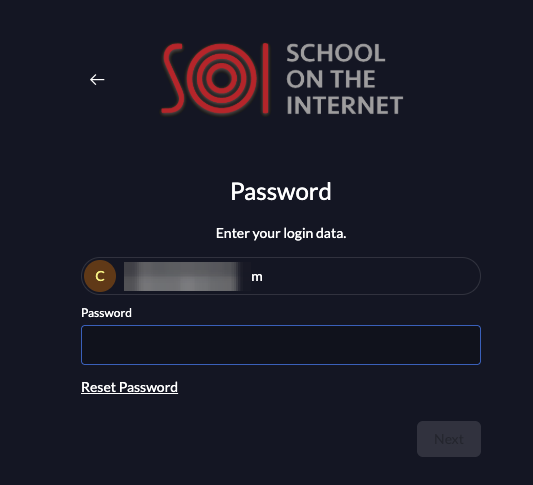
On the password screen, click the Reset Password link, then click Next.
-
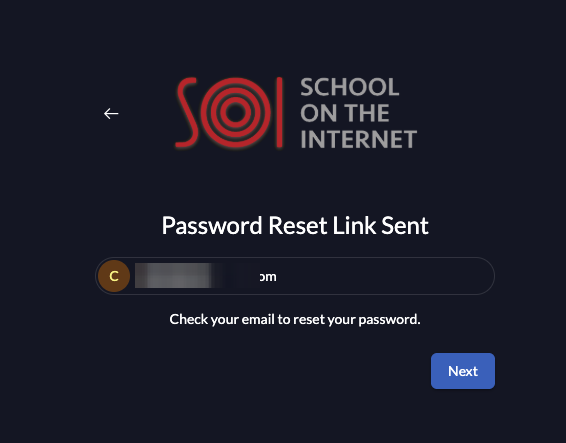
A password reset link will be sent to your email. Check your inbox and follow the link
to set a new password.
2. How to Set Up Passwordless (Passkey)
- Open your web browser and go to the SOI Enrollment website: https://enrollment.soi.asia.
- Click on the Login button and you will be redirected to the SOI Asia IdP account.
-
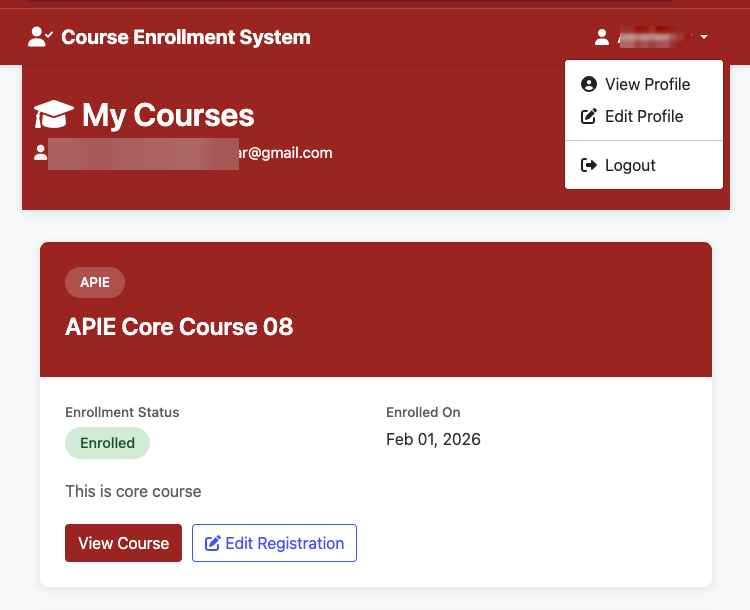
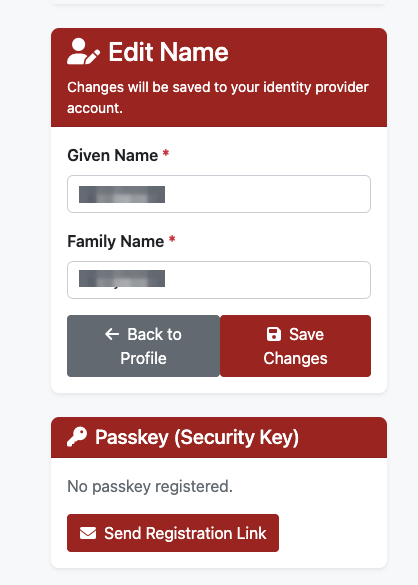
Log in as usual, then click on your name in the top right and select Edit Profile.
-
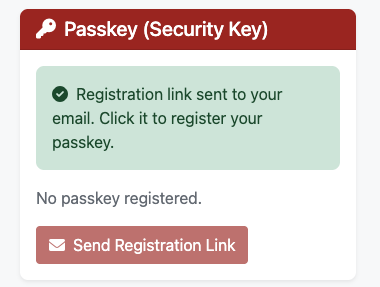
In the Passkey (Security Key) section, click Send Registration Link
to start passwordless setup.
-
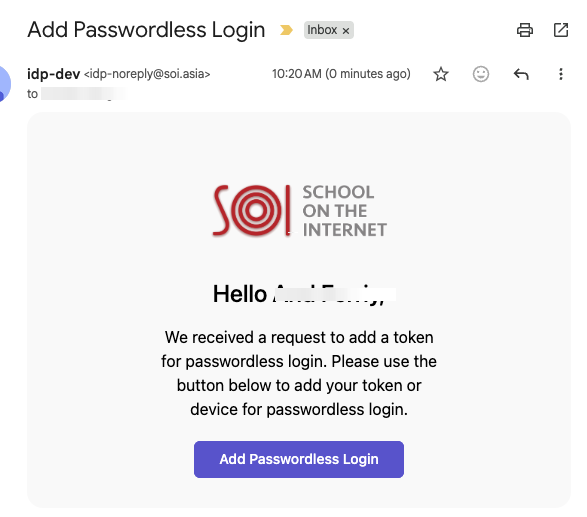
Check your inbox for an email titled "Add Passwordless Login" and click the
Add Passwordless Login button inside it.
-
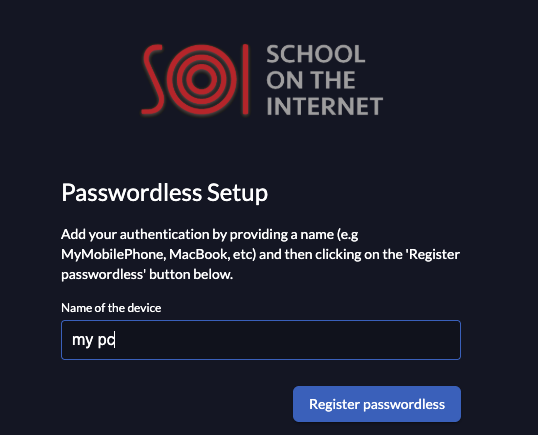
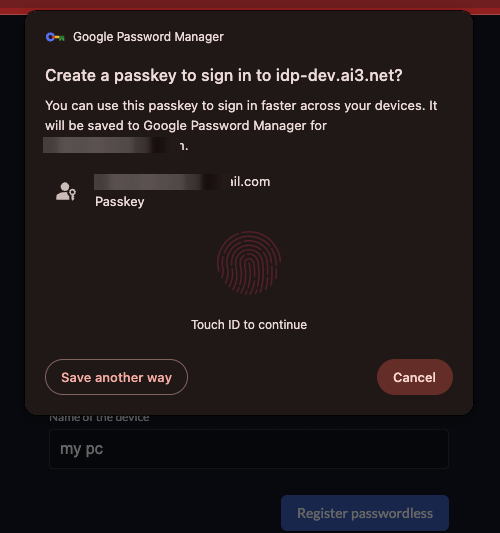
Enter a name for your device (e.g. MyMobilePhone, MacBook) and click
Register passwordless. Your browser will show a prompt to save a passkey
(e.g. via Touch ID, Face ID, or your device's password manager) — follow the on-screen
steps to confirm.
-
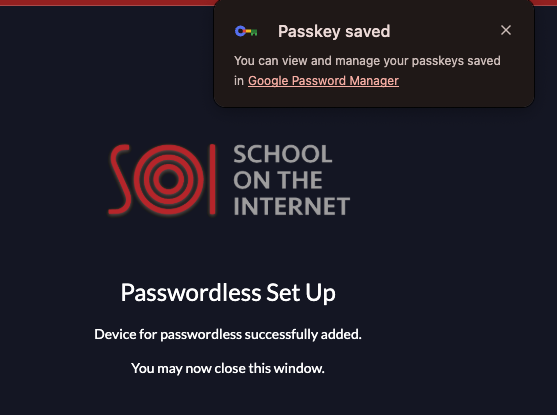
Once complete, you'll see a confirmation that your device was successfully added.
-
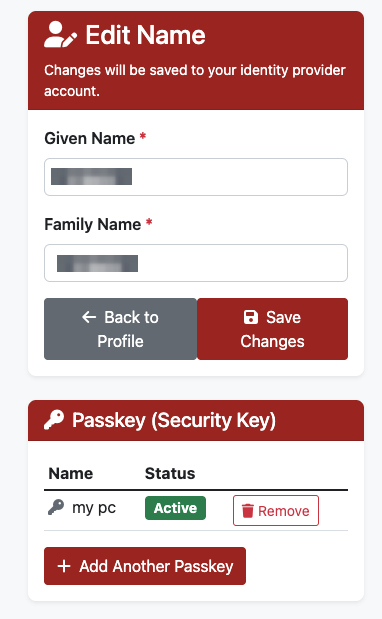
Return to Edit Profile to see your registered passkeys under
Passkey (Security Key). You can add additional passkeys or remove existing
ones from this list at any time.
Note: Passwordless login requires a device that supports passkeys
(e.g. Touch ID, Face ID, Windows Hello, or a hardware security key) and a browser that
supports WebAuthn.